NEW
Booking data, wherever you need it:

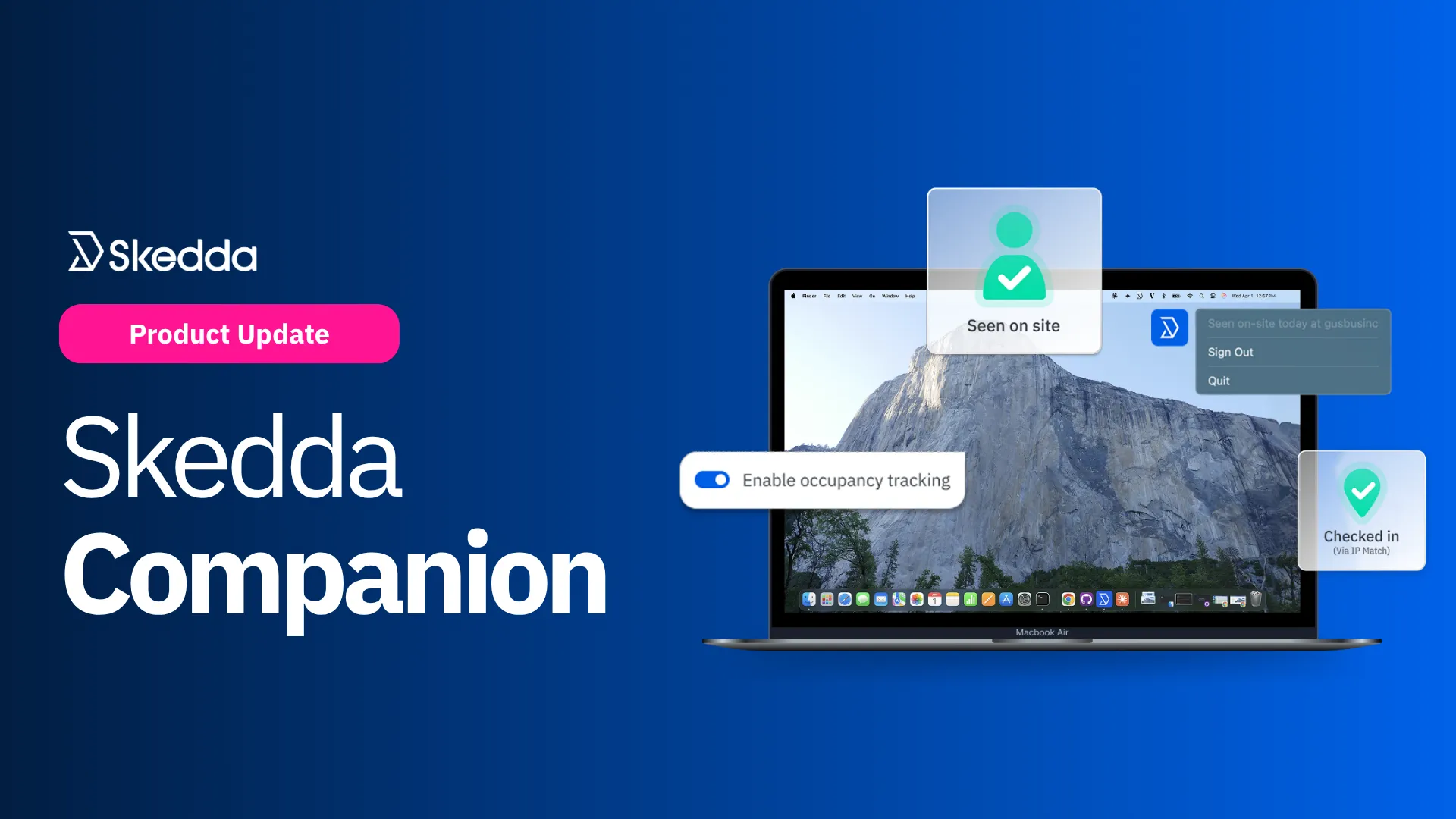
Détection de présence et enregistrement automatiques assistés par Wi-Fi, optimisés par le nouvel assistant de bureau sans conducteur de Skedda pour Mac et Windows.
Avec l'application Skedda Companion, vous bénéficiez de :
Cela semble évident, mais de nombreux outils de travail nécessitent encore des étapes supplémentaires, telles que la numérisation de codes QR, le maintien d'un navigateur ouvert ou la mémorisation de l'enregistrement manuel. À mesure que de plus en plus d'employés reprennent leurs horaires de bureau habituels, ces points de contact supplémentaires créent plus de frictions, plus d'erreurs et plus d'enregistrements manqués.
Le résultat est connu : des réservations fantômes, des données d'occupation peu fiables et une augmentation du temps perdu pendant la journée de travail.
C'est pourquoi nous avons construit le Appli Skedda Companion. Il s'agit d'une application de bureau légère qui s'exécute silencieusement à partir de la barre d'état système de Windows ou de la barre de menus de Mac. Elle envoie un ping à Skedda lorsqu'un ordinateur professionnel est détecté sur le réseau du bureau. Cela permet à Skedda de marquer les utilisateurs comme « vus sur place » pour la journée et de prendre en charge l'enregistrement automatique pour les réservations éligibles.
Dans une application de bureau légère, l'application Skedda Companion réunit la détection de présence par Wi-Fi, les enregistrements automatiques, la prise en charge multiplateforme pour Mac et Windows et une conception axée sur la confidentialité conçue pour une utilisation sur le lieu de travail.
L'application Skedda Companion est conçue pour que les réservations de bureau quotidiennes soient plus automatiques.
Au lieu de demander aux employés de se souvenir d'un autre rituel sur le lieu de travail, l'application confirme discrètement la présence au bureau et les réservations via l'ordinateur de travail qu'ils utilisent déjà sur place. Cela signifie moins de rappels, moins d'enregistrements manqués et moins de réservations perdues qui gênent la journée de quelqu'un.
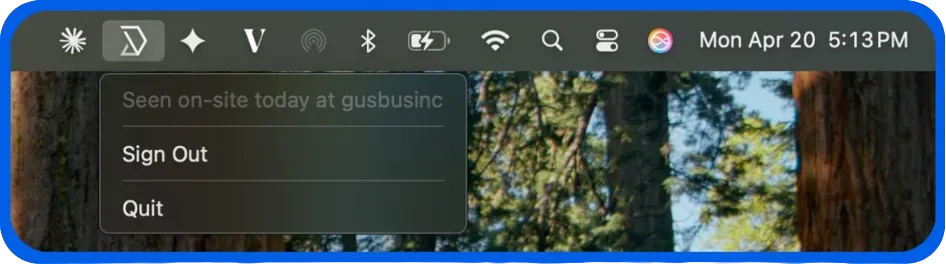
Pour votre équipe, la valeur est simple : arrivez au bureau, allumez votre ordinateur et commencez la journée !
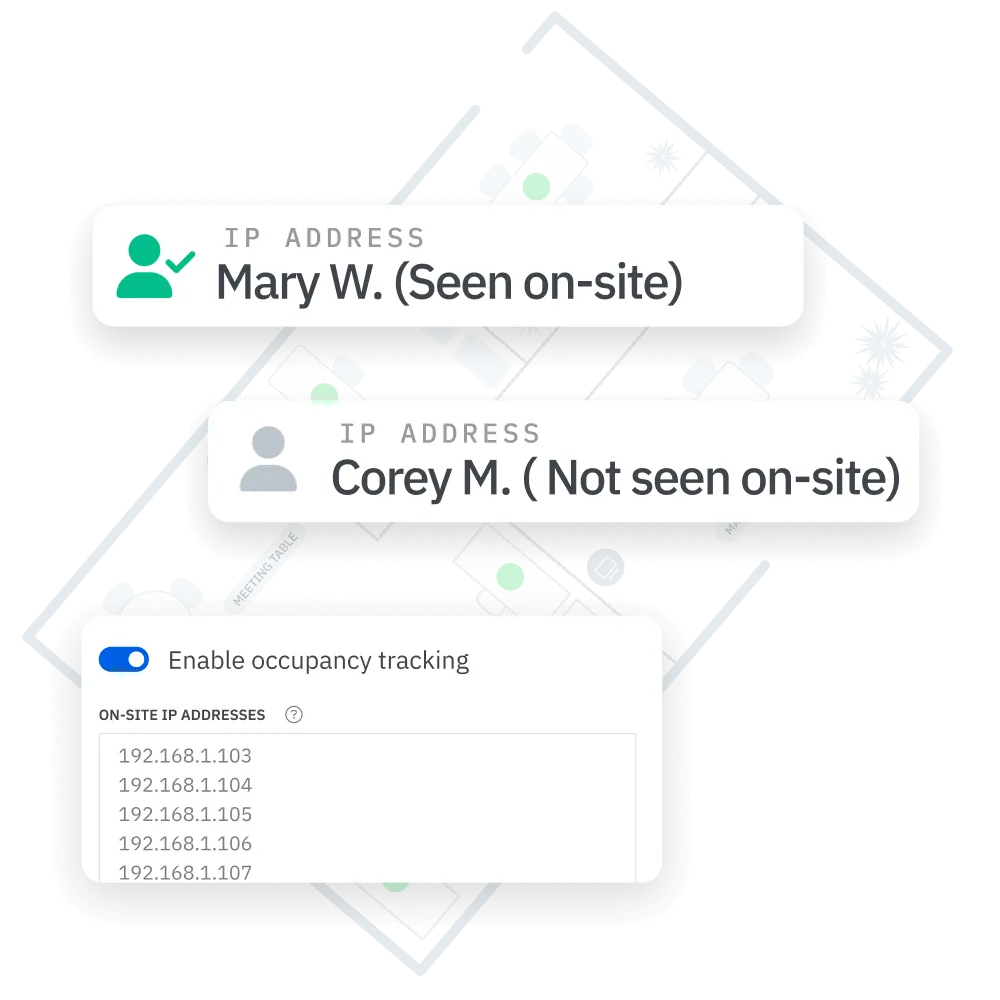
Les réservations et les enregistrements sont utiles, mais ils ne racontent qu'une partie de l'histoire. Ce que les équipes sur le lieu de travail ont vraiment besoin de savoir, c'est qui s'est présenté physiquement. L'application Skedda Companion utilise la détection Wi-Fi pour marquer les utilisateurs « vus sur place » lorsqu'ils sont au bureau, offrant ainsi aux administrateurs une vision plus claire de leur présence quotidienne et un historique de l'activité sur le site au fil du temps. Cela permet de repérer plus facilement les habitudes de fréquentation, d'améliorer la gestion des bureaux et des salles et de prendre des décisions plus confiantes en matière de politique hybride et d'immobilier.
Il ne s'agit pas simplement de faciliter les enregistrements. Il s'agit de rendre l'état du site visible et de rendre les données d'occupation plus fiables.
L'application Skedda Companion s'intègre naturellement à l'infrastructure que de nombreuses organisations ont déjà mise en place.
Il est déployé sur les appareils gérés par l'entreprise et fonctionne sur le réseau de votre bureau local, sans matériel supplémentaire, sans installation de capteurs ou autorisation de géolocalisation envahissante. Les équipes informatiques peuvent distribuer des liens d'installation directement aux utilisateurs ou installer automatiquement l'application Skedda Companion sur tous les appareils à l'aide d'un outil de déploiement tel qu'un MDM. Quoi qu'il en soit, les utilisateurs se connectent une seule fois avec leur adresse e-mail professionnelle associée à Skedda, les connexions persistent après les redémarrages et les mises à jour sont automatiques.
Cela en fait un moyen simple et sécurisé de renforcer les signaux de présence sans introduire un autre système lourd à gérer.
Pour démarrer, rien de plus simple :
Une fois installée et connectée, l'application effectue des vérifications programmées de correspondance IP lorsqu'elle détecte un changement de réseau, au début de la prochaine réservation, à l'ouverture de la prochaine fenêtre d'enregistrement, puis de nouveau à midi. Lorsque l'appareil est détecté sur le réseau du bureau, Skedda enregistre l'utilisateur sous la forme »vu sur place » pour la journée et peuvent les enregistrer pour les réservations éligibles pour le reste de la journée une fois la fenêtre de réservation ouverte.
L'application Skedda Companion facilite les interactions quotidiennes sur le lieu de travail, offrant aux employés une expérience plus fluide et aux équipes une vision plus claire et plus fiable des personnes présentes sur place.
Prêt à le voir en action ? Réservez une démonstration avec notre équipe dès aujourd'hui.
Notre équipe est prête à discuter de vos besoins spécifiques en matière de planification de bureau et de voir comment Skedda pourrait vous aider.

.svg)